How to import browser shortcuts to launch Outlook, Excel, Teams, OneDrive, etc:
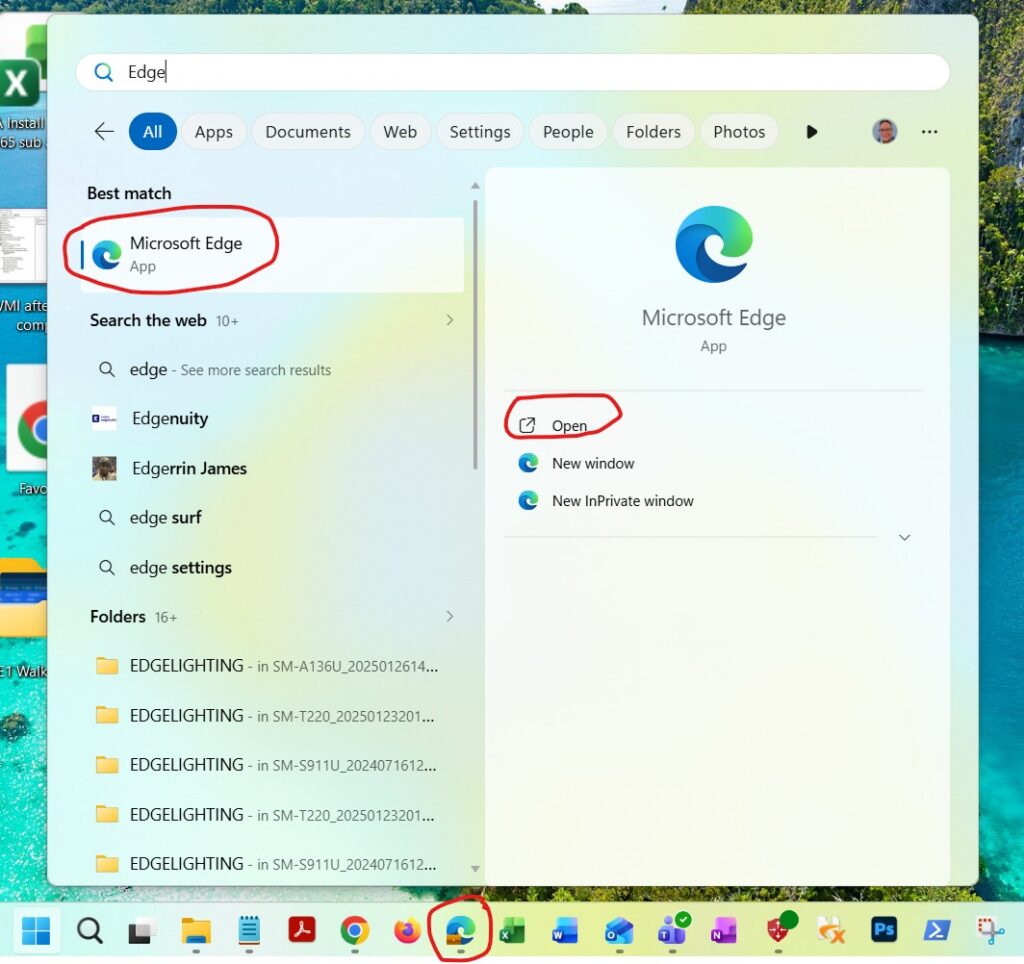
Launch Microsoft Edge from the Windows start menu or there may already be a shortcut pinned to your taskbar
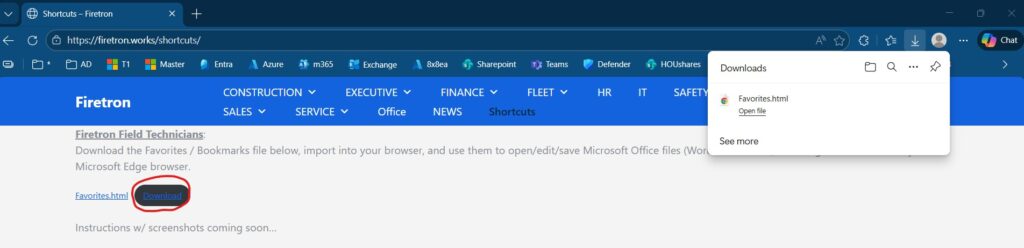
Download the favorites.html file
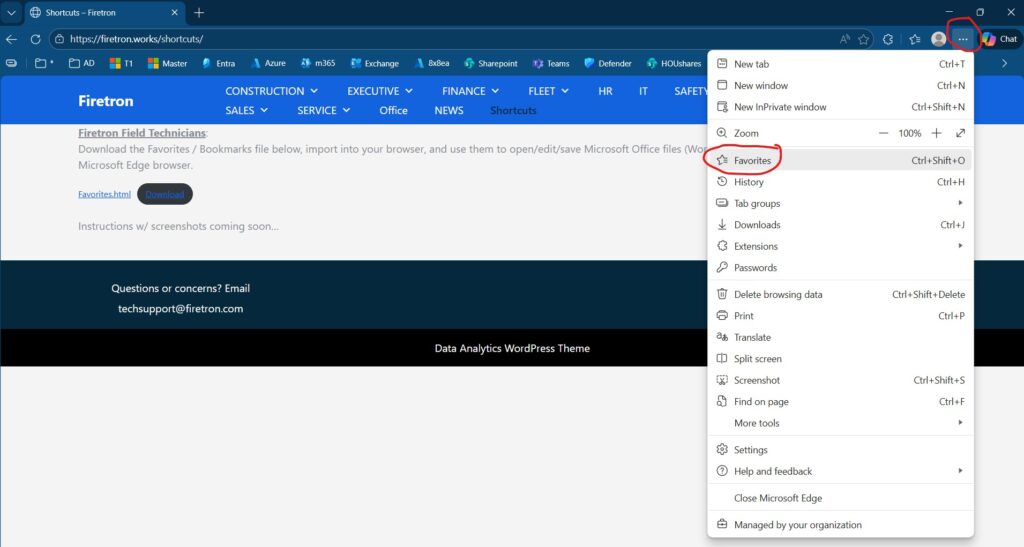
Click the 3 dots in the upper right-hand corner and choose ‘Favorites’ from the dropdown menu
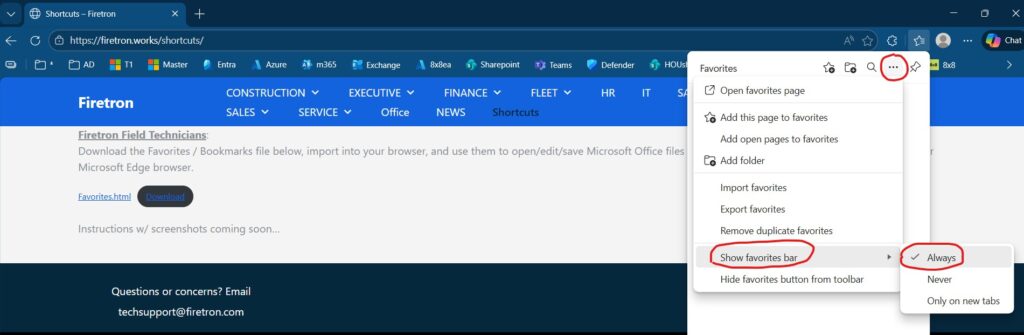
Click the 3 dots, hover over ‘Show favorites bar’, and select ‘Always’
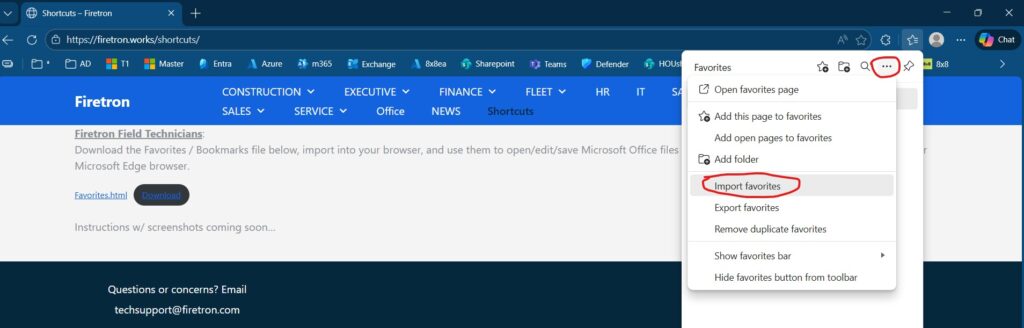
Click the 3 dots and choose ‘Import favorites’
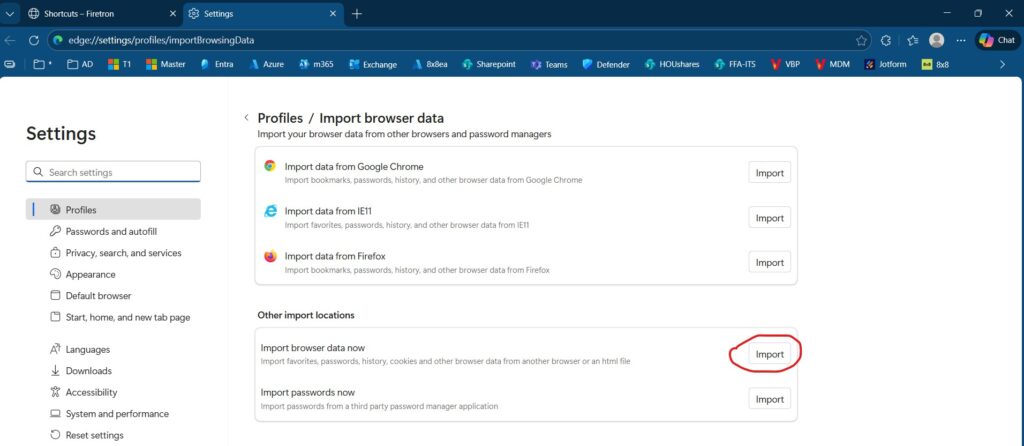
Import browser data now
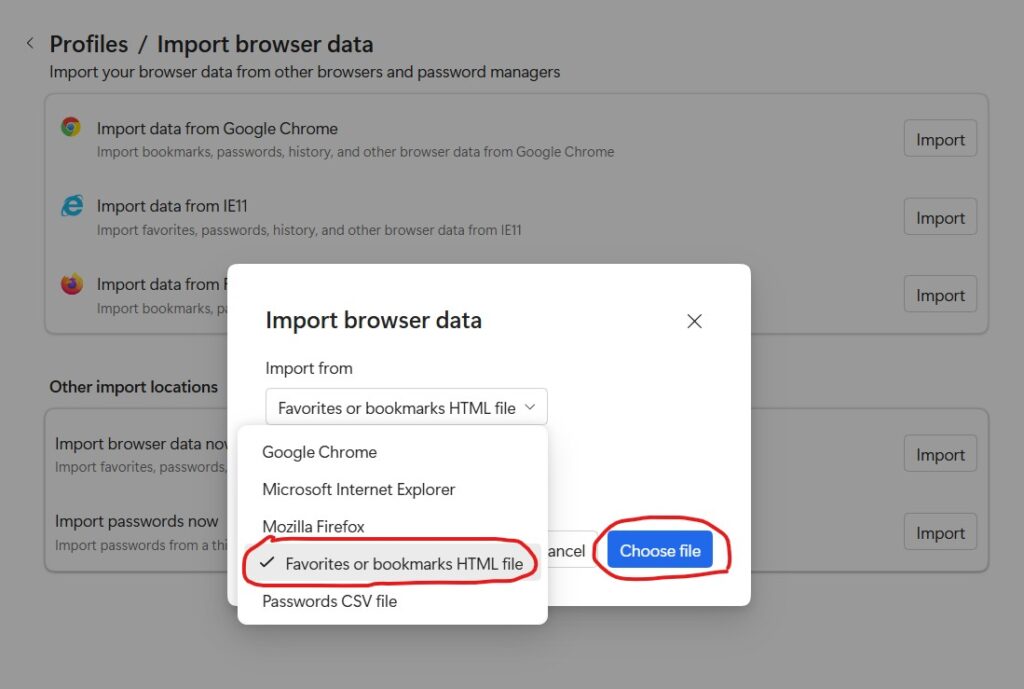
Choose ‘Favorites or bookmarks HTML file’ from the dropdown menu then click the blue ‘Choose File’ button
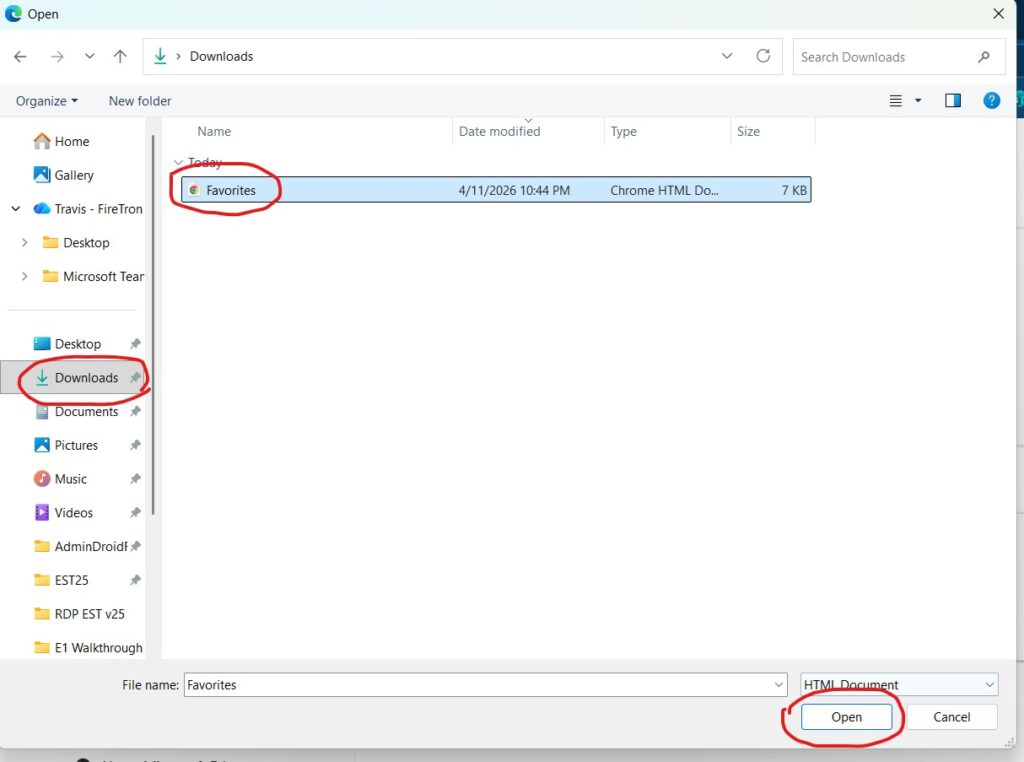
A file explorer window will open. Navigate to your ‘Downloads’ folder, select the ‘Favorites.html’ file, and click the ‘Open’ button
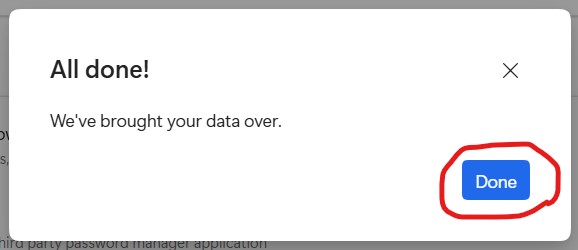
Click the blue ‘Done’ button
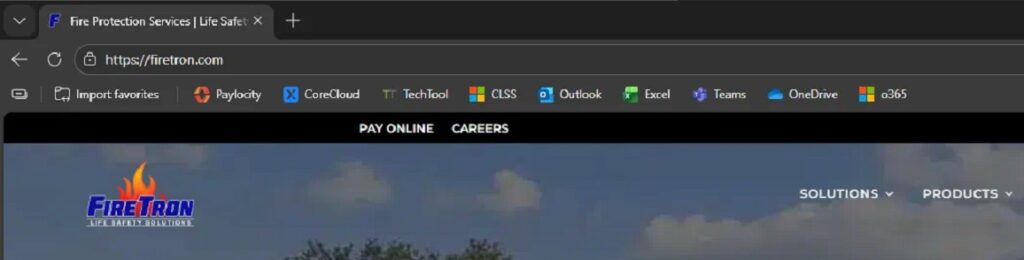
All favorites should now be available in the favorites bar of your MS Edge browser
If you encounter any issues with this process, create a ticket by calling 713.624.4242 or send an email to techsupport@firetron.com w/ your “Name – Issue” in the subject line + any other details / screenshots in the body of that email, and we’ll reach out to assist further.